

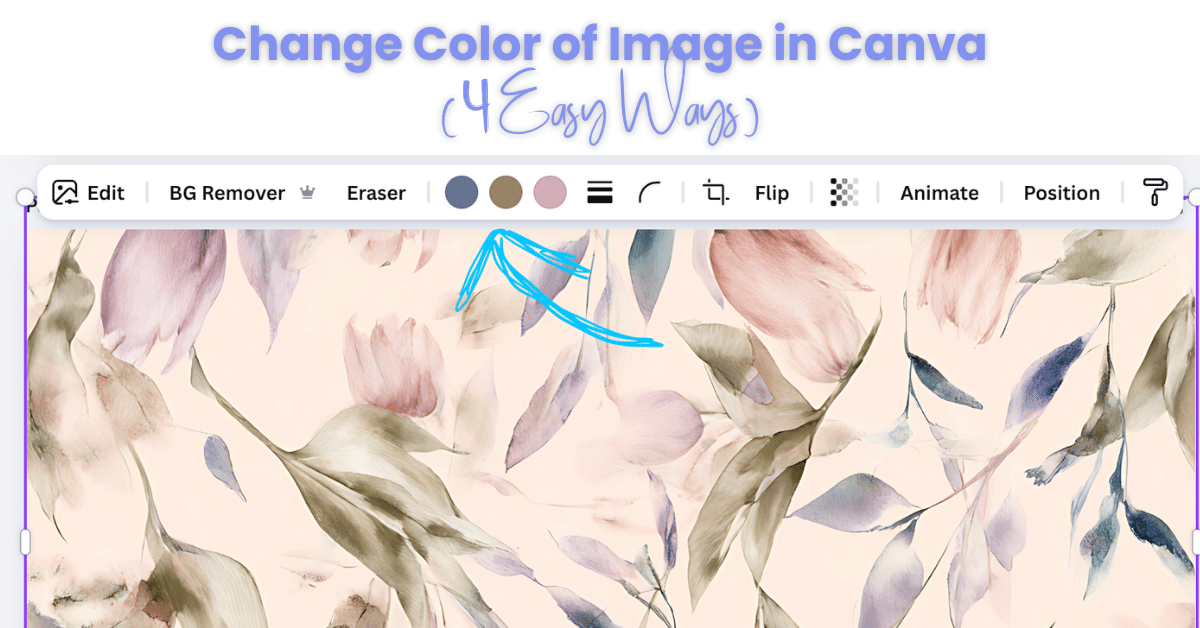
Sometimes you find the perfect image in Canva… except for the color.
Maybe the graphic fits your design perfectly, but the colors don’t match your project’s palette. The good news is that Canva includes several tools that allow you to adjust colors quickly and easily.
Whether you're creating social media graphics, digital products, printable designs, or website visuals, knowing how to recolor images in Canva is a useful design skill.
Below are four simple ways to change the color of images and graphics in Canva.
Quick Answer: How Do You Change the Color of an Image in Canva?
There are several ways to change image colors in Canva depending on the type of image you're using. The most common methods include:
• applying the DuoTone effect
• using Canva filters
• changing colors directly on vector graphics and illustrations
• adjusting temperature and tint settings
Each method works best depending on whether the image is a photo, graphic, or illustration.
Before You Start: Duplicate Your Design
Before experimenting with color adjustments, it's a good idea to protect your original design.
When applying filters, effects, or color edits, Canva may permanently change the image. If you decide later that you don’t like the result, it’s much easier to return to the original version if you made a copy first.
Two easy options include:
Duplicate the page
Click the Duplicate Page icon above the canvas.
Duplicate the file
Click File → Make a Copy.
This allows you to experiment with different color effects without worrying about damaging your original work.
Method 1: Use Canva's DuoTone Effect
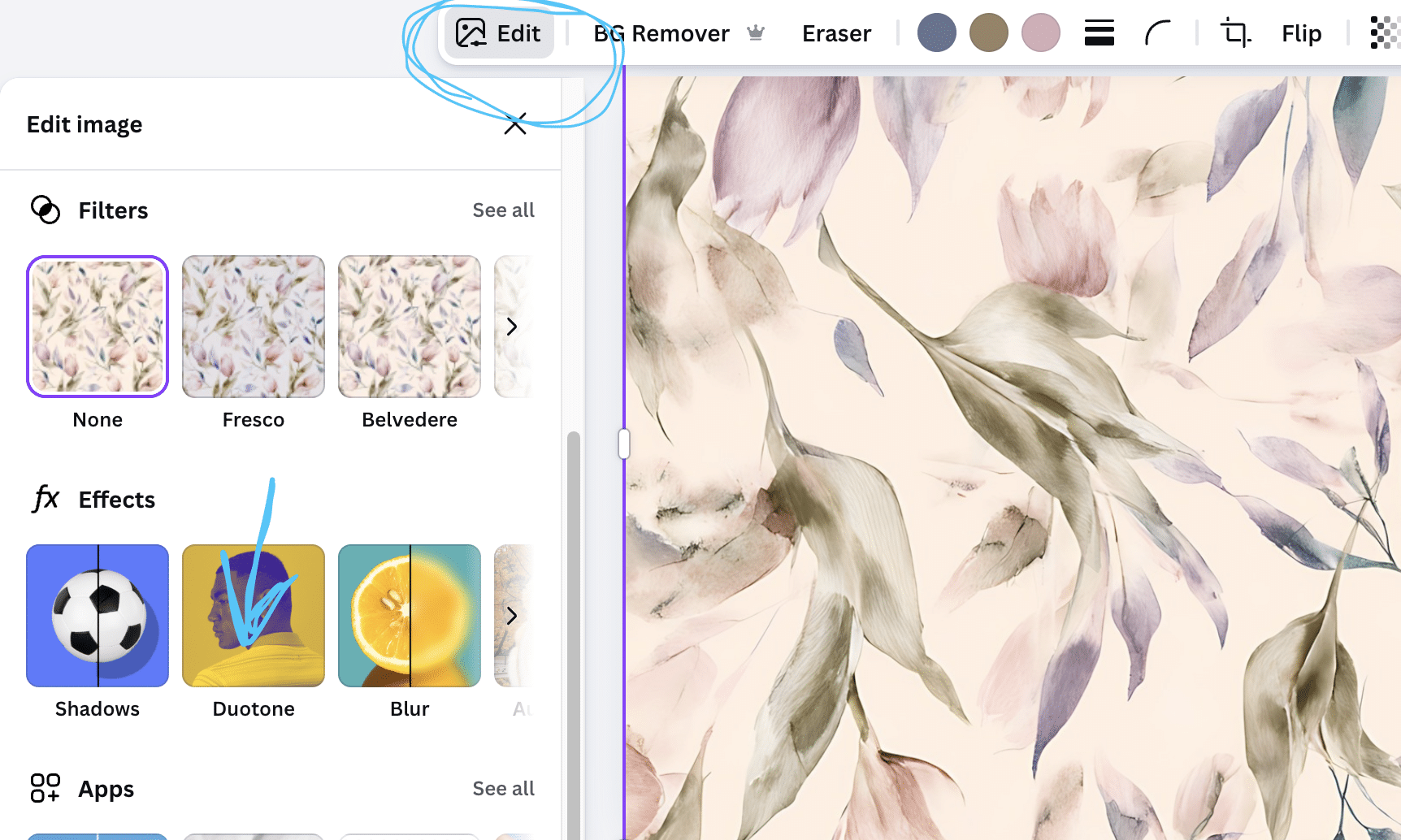
One of Canva’s fastest color-changing tools is the DuoTone effect.
What DuoTone Does
DuoTone replaces the original colors in a photo with two new colors:
• a highlight color
• a shadow color
This creates a tinted effect often used in modern web design and marketing graphics.
For example, a normal photo can quickly become:
• blue and navy
• pink and purple
• teal and gold
Steps
- Select the image on your canvas.
- Click Edit Image in the top toolbar.
- Scroll down to DuoTone.
- Choose a preset style.
- Click the preset again to adjust the highlight and shadow colors.
Does DuoTone Work on All Images?
DuoTone works best on photos or raster images such as JPG or PNG photos.
It usually does not work on vector graphics or illustrations, which use a different type of color editing.
Method 2: Apply a Canva Filter
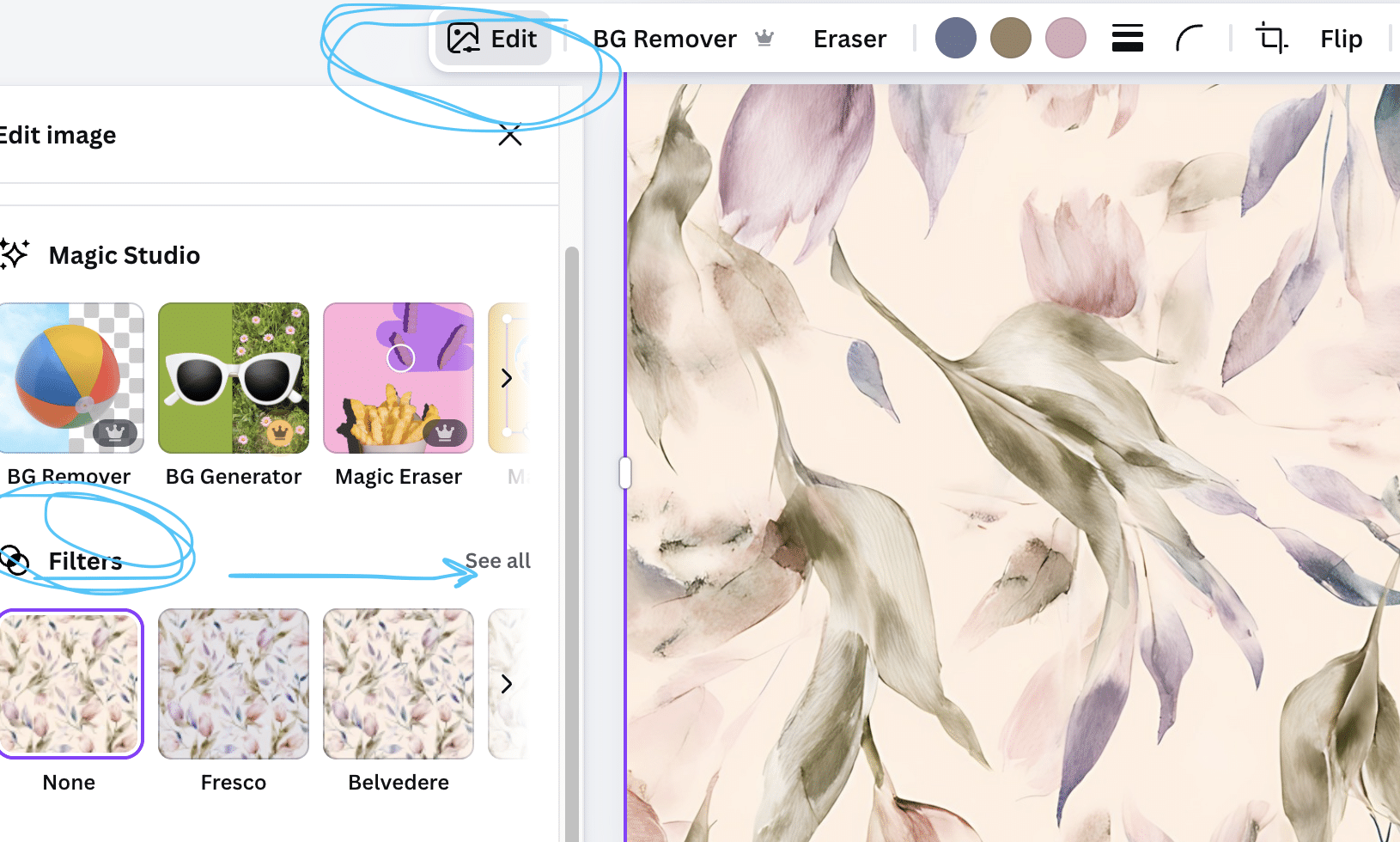
Another easy way to shift the color tone of an image is by applying a preset filter.
Filters instantly apply a color treatment that can dramatically change the mood or appearance of an image.
For example, a filter can make an image appear:
• warmer
• cooler
• darker
• softer
• more vibrant
Steps
- Select the image on your canvas.
- Click Edit Image in the top toolbar.
- Scroll to the Filters section.
- Click one of the filter previews.
- The color tone will change immediately.
You can test different filters to see which one works best with your design.
Filters work best with photos and raster images, since they adjust the overall tones of the picture.
Method 3: Change Colors Using the Color Toolbar
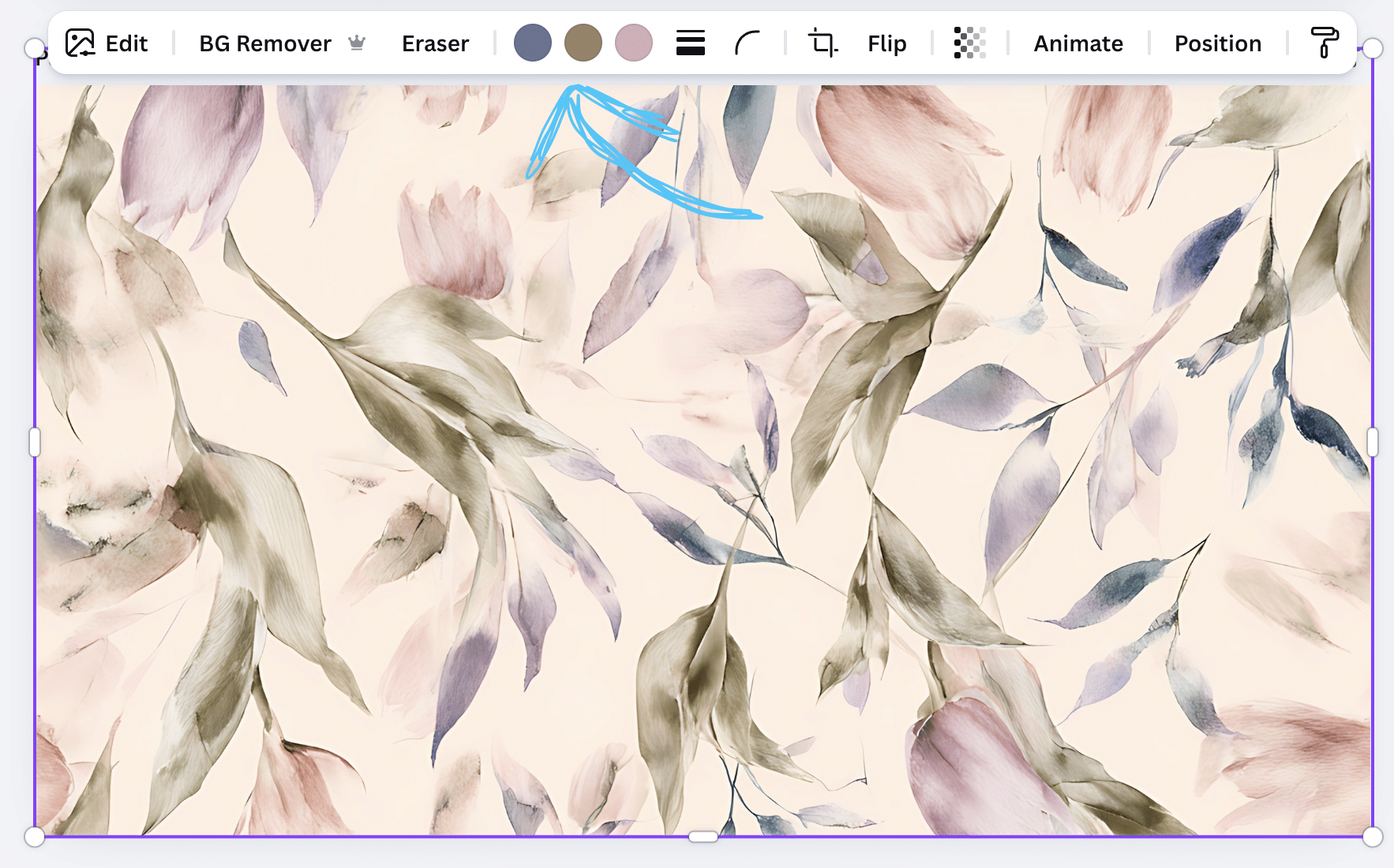
Some Canva graphics allow you to change colors directly using the color toolbar.
This works primarily with vector graphics and illustrations.
What Are Vector Graphics?
Vector graphics are images made from shapes rather than pixels.
Because they are built from editable shapes, Canva allows you to change their colors individually.
Examples include:
• icons
• decorative graphics
• line art
• simple illustrations
These usually appear under Elements → Graphics.
How to Tell if an Image Is Editable
Click the image.
If you see color squares in the top toolbar, the colors can be edited.
If you do not see color squares, the image is likely a photo.
Steps
- Click the graphic.
- Look for the color boxes in the toolbar.
- Click one of the color boxes.
- Choose a new color.
The selected portion of the graphic will change instantly.
Changing Multiple Colors in a Graphic
Many vector graphics contain several editable colors.
Each color will appear as a separate color square in the toolbar.
Example:
Color 1 → background
Color 2 → icon
Color 3 → accent

To recolor the graphic:
- Click the first color square.
- Choose a new color.
- Repeat for the remaining colors.
Helpful Tip
Use Canva’s color picker tool (the eyedropper icon) to select colors already used elsewhere in your design. This keeps your design visually consistent.
Method 4: Adjust the Color Temperature and Tint
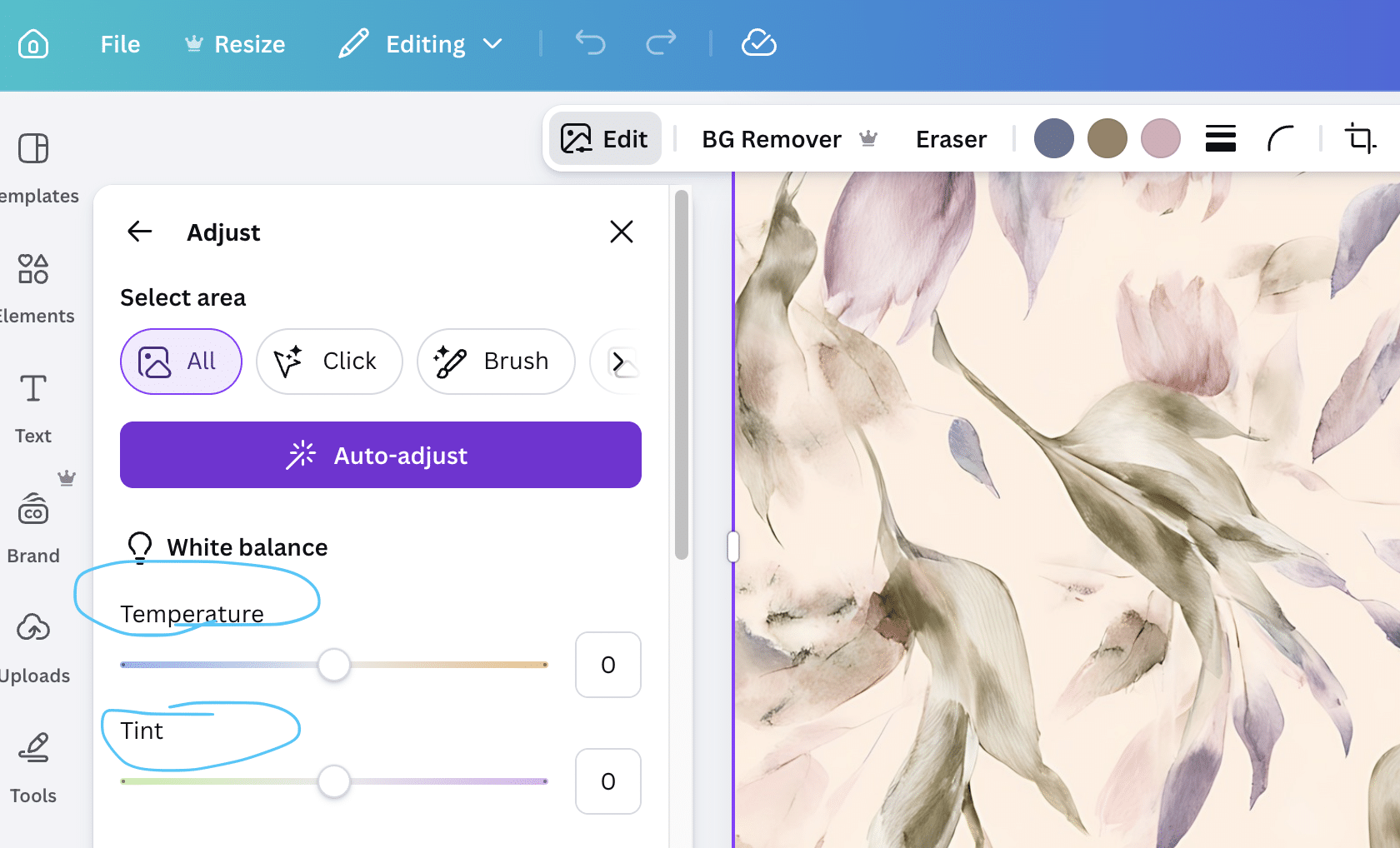
Another way to shift the color of an image is by adjusting the Temperature and Tint controls.
What These Settings Do
Temperature changes how warm or cool the image appears.
• Moving the slider right adds warmer tones (yellow/orange).
• Moving it left adds cooler tones (blue).
Tint adjusts the balance between green and magenta tones.
These adjustments are subtle but helpful when you want a photo to match the color palette of your design.
Steps
- Select the image.
- Click Edit Image.
- Scroll to the Adjust section.
- Use the Temperature and Tint sliders.
This method works best on photos and raster images.
Projects That Often Require Recoloring Images
Knowing how to recolor images in Canva is helpful for many design projects, including:
• video backgrounds
• virtual Zoom backgrounds
• computer and tablet wallpaper
• website backgrounds
• journal borders
• planner pages
• invitations
• and many other digital designs.
Sometimes a simple color change is all it takes to make a graphic match a completely different theme or color palette.
If you're curious how creators design virtual Zoom backgrounds in Canva, the full process is outlined for you.
You can also learn how creators design computer and tablet wallpaper for desktops, laptops, and tablets.
Understanding Wallpaper Sizes and Resolution
If you are designing backgrounds for screens, it helps to understand common screen sizes and resolutions.
A helpful reference page can be found here:
https://www.template.net/graphic-design/wallpaper-sizes/
This page lists common dimensions used for:
• desktop monitors
• laptops
• tablets
• widescreen displays
Higher resolution images usually appear clearer and sharper, especially on large monitors.
Frequently Asked Questions
Can you recolor any image in Canva?
Not every image can be recolored the same way. Photos usually require filters, DuoTone, or adjustment tools. Vector graphics often allow direct color editing.
Why can’t I change the color of some images in Canva?
If the image is a flattened photo or raster image, Canva cannot edit individual colors. Only vector graphics allow direct color replacement.
What images allow direct color editing?
Vector graphics and illustrations typically allow color changes. These images display color boxes in the top toolbar.
Summary
Changing the color of images in Canva is simple once you understand the available tools.
You can recolor images by using:
• the DuoTone effect
• filters
• vector color editing
• temperature and tint adjustments
These techniques are useful for everything from social media graphics to digital backgrounds and screen wallpaper.
Have questions about changing the color of an image? Talk to me below!